Show Time: run your club's show from your phone
Pilot sign-ups, the running order, the flight line, the commentary and a live page for spectators - all in one free tool for club shows and fly-ins.
 Matt Takhar12 November 2026 · 4 min read
Anyone who has helped run a club show knows the drill: a clipboard of pilot names, a running order that's out of date by eleven o'clock, someone shouting across the pits for the next pilot, and a commentator trying to remember who's flying what.
Show Time puts all of that in one place, on the phones you already carry. It's free for clubs, and it's built for anything from a small fun-fly to a two-day event.
Before the day: sign-ups and the running order
A club admin creates the show in a couple of minutes: the name, the club's flying site, the date and how many days it runs, and when flying starts and finishes. You can describe what's on, parking, food and the entry fee, and choose whether to list the show publicly so pilots and spectators can find it.
Pilots then sign up from the show page. They pick the models they're bringing and write a short display plan - what they'll fly and what they'll do. If you need it, you can ask every pilot for their BMFA number or a valid Flyer ID, and anything missing is flagged for you.
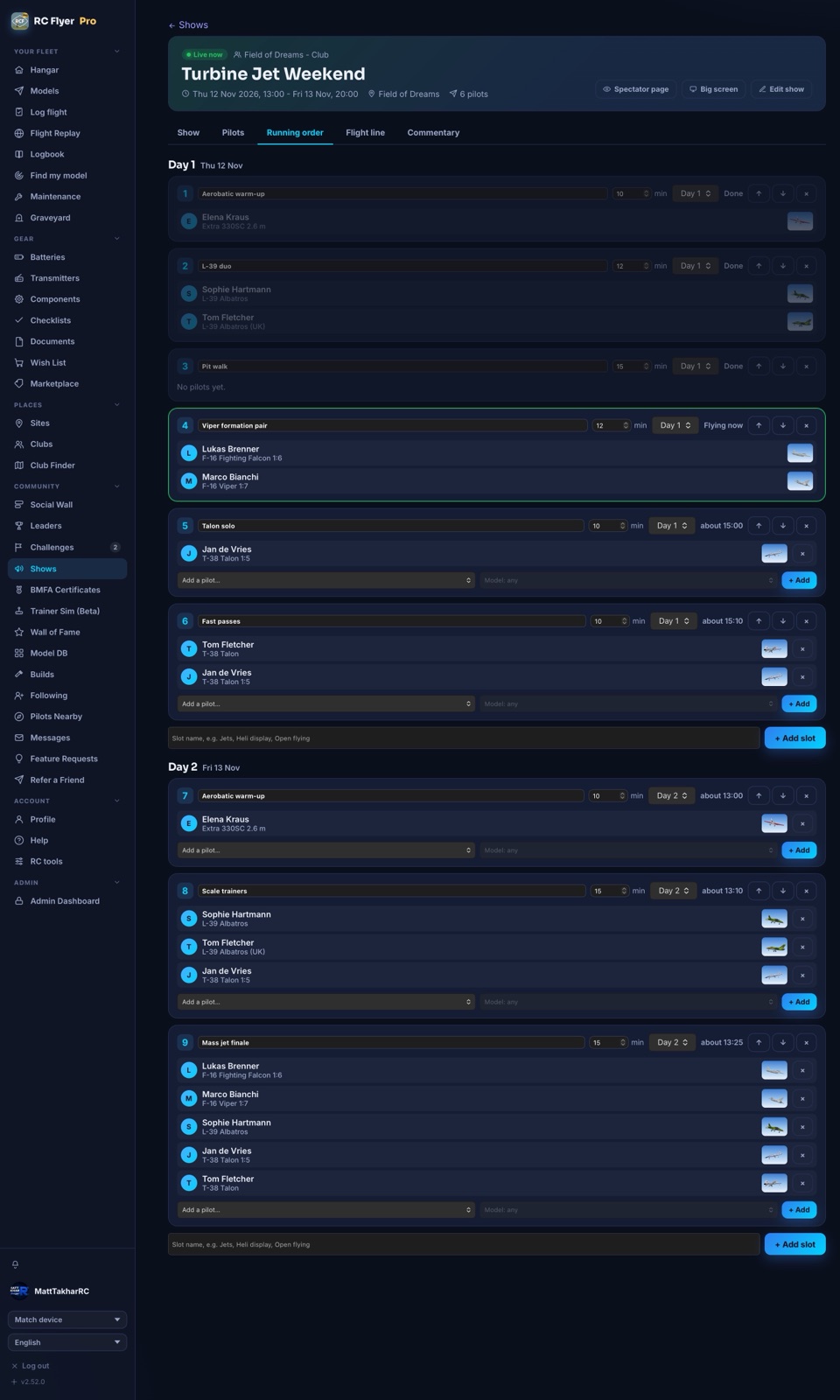
You accept or decline each pilot, then build the running order: slots like "Jets", "Heli display" or "Open flying", each with its length and day, and the pilots and models in each one. The times work themselves out from the start time.
On the day: the flight line
On the morning, the flight line director opens the Flight line board on their phone. Start the first slot and it shows who's flying now, in green. Tap each pilot as they land, then start the next slot. Running late or someone not ready? Skip the slot and put it back later - the times update for everyone.
The clever bit is the alerts. Pilots get a heads-up on their phone one slot before they fly, and a "get ready" alert when they're up next. No more shouting across the pits.
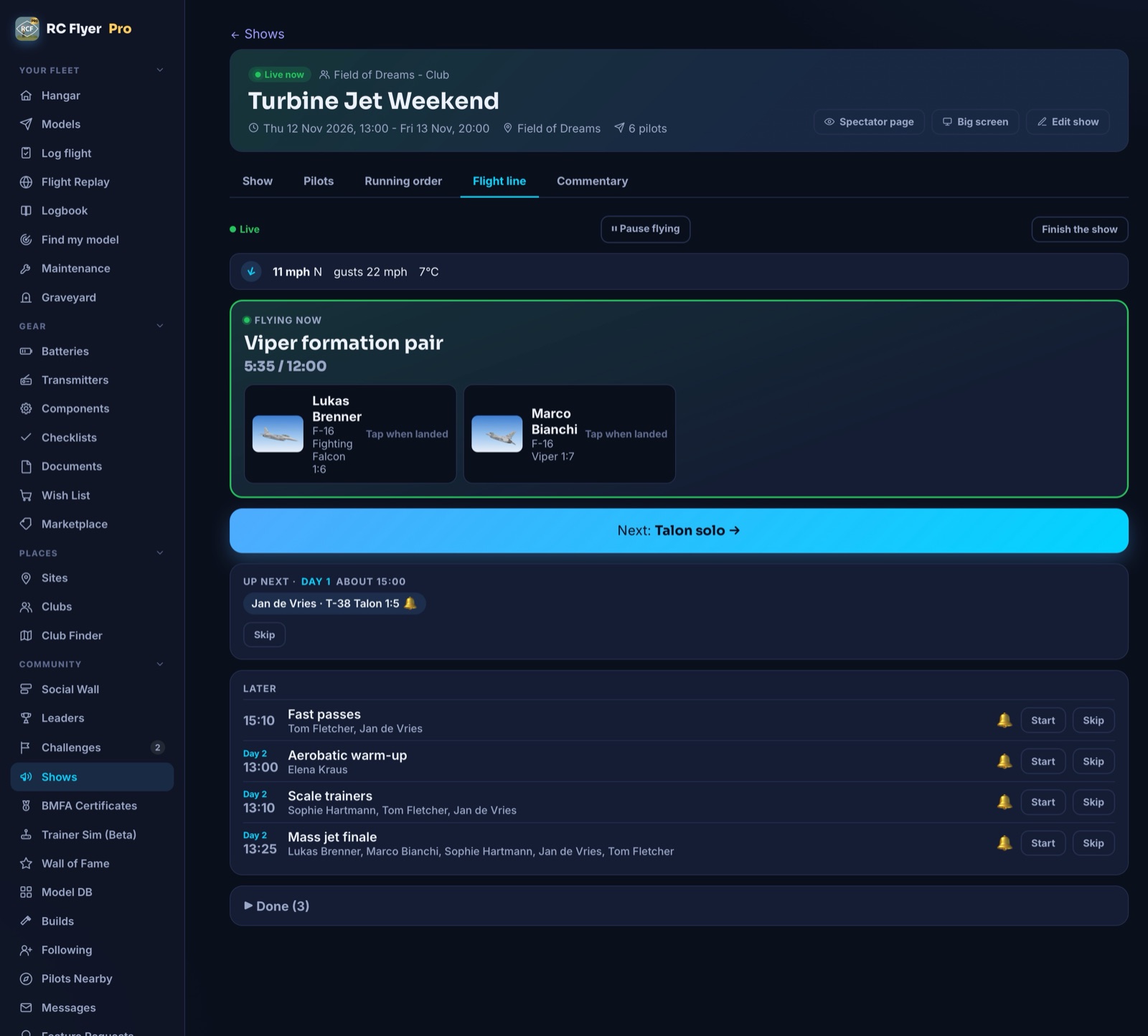
If something stops play - wind, a full-size aircraft, an incident on the field - tap Pause flying. A "Flying paused" banner appears on every screen, and when you resume, the slot gets its time back.
The commentator's console
Commentators get their own screen with who's flying now and who's next. For each pilot it shows their background, flights and hours, the model they're flying with its photo and type, and their display plan - plenty to talk about while they fly.
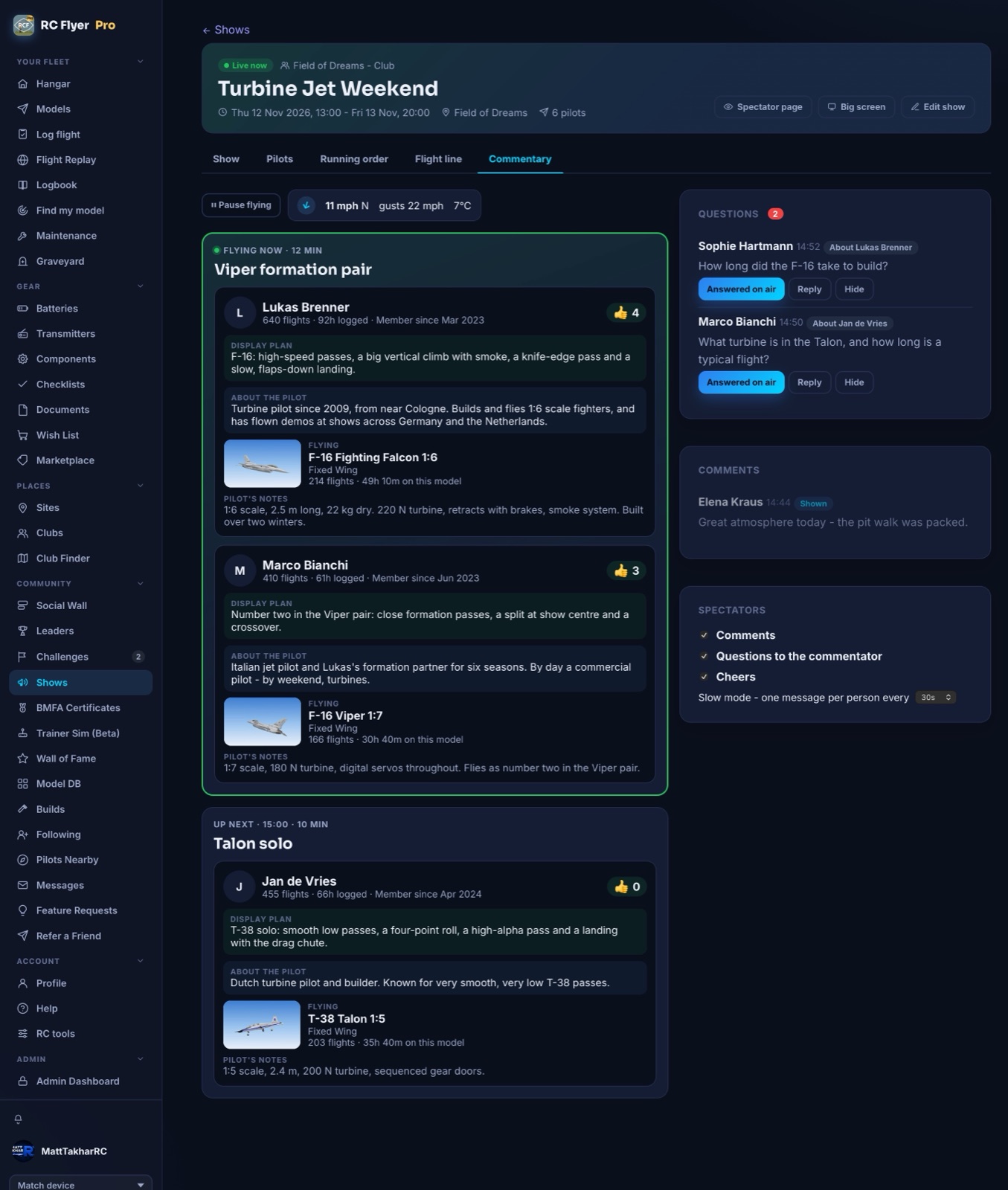
Spectators can send questions straight to the commentator, so the best ones can be answered on air.
For spectators: a live page from a QR code
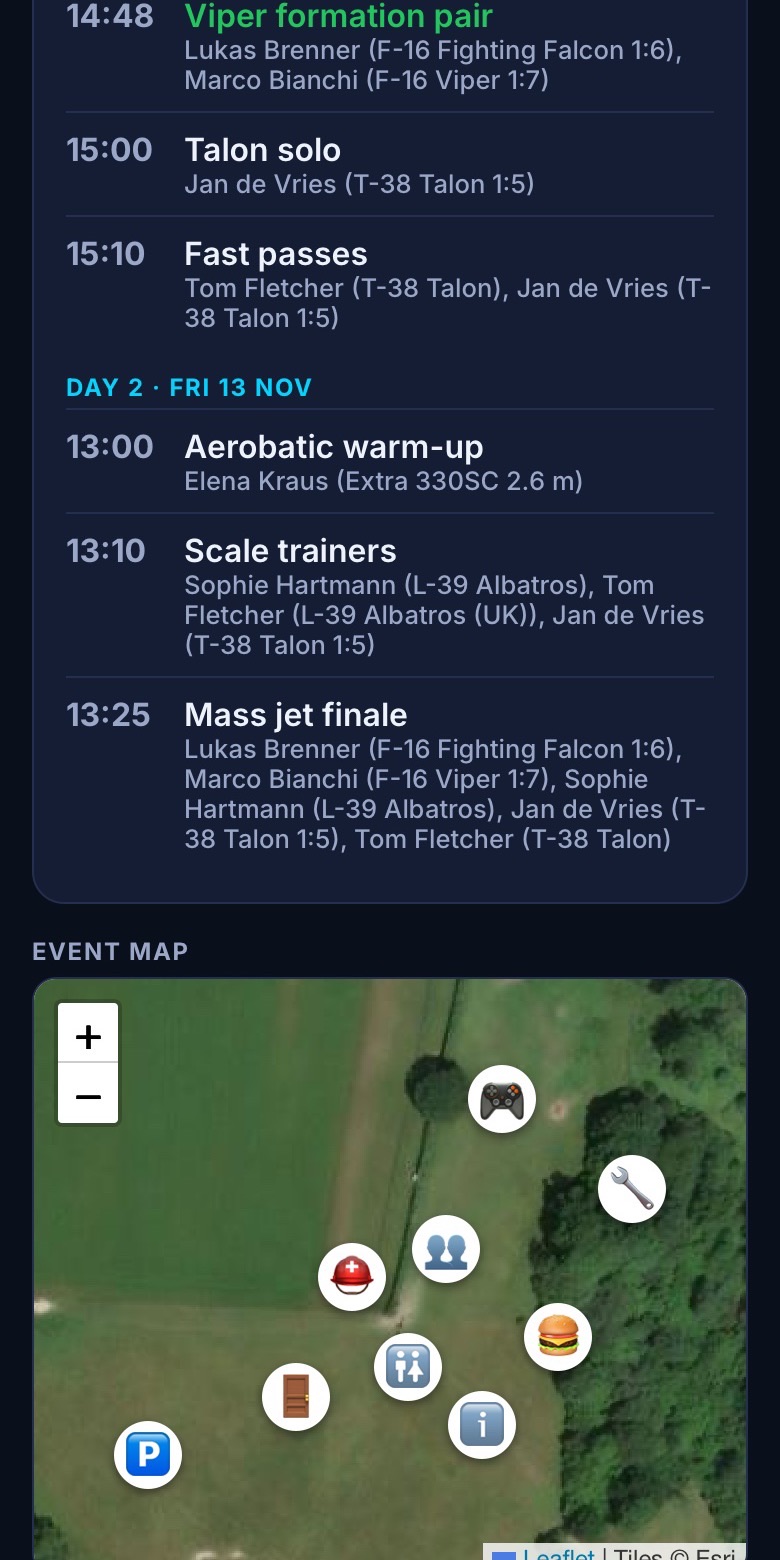
Print the show's QR poster for the gate and the car park. Spectators scan it and follow the show live on their phone, with no app and no account: who's flying now and next, the programme, the weather and a map of the site showing parking, food, toilets and first aid.
With a free account, spectators can cheer for a pilot, follow one to get an alert when they're about to fly, and send comments. Comments are checked by the commentator before anyone else sees them, and junior pilots are shown by first name only, with nobody able to send comments or questions about them.
The big screen
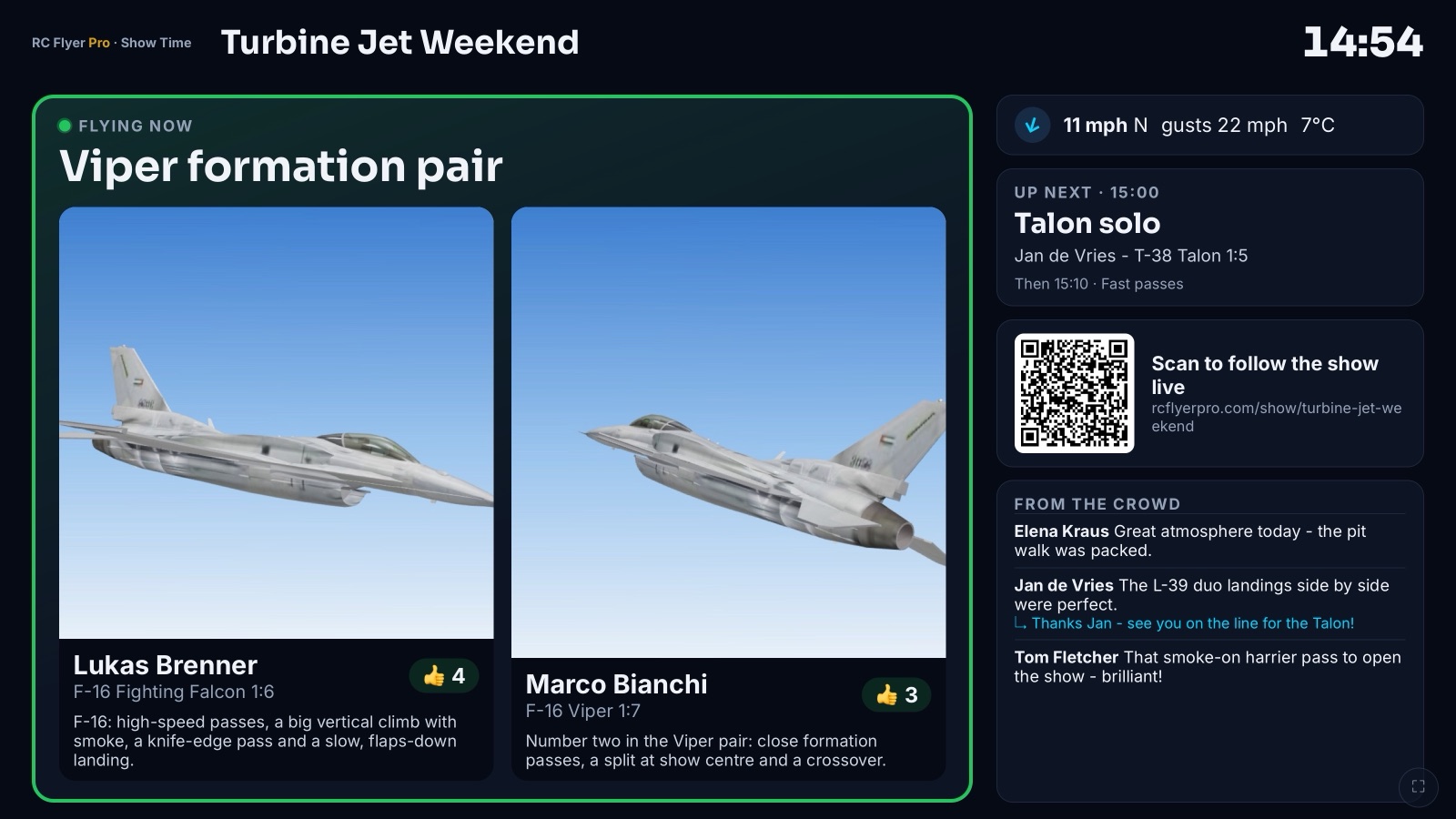
Got a TV in the clubhouse or a screen by the crowd line? Open the big screen view: who's flying now with their model photos, who's up next, the clock, the weather, the QR code and the latest comments. It stays awake and updates by itself all day.
After the show
When the last slot lands, tap Finish the show. The public page turns into a recap: the pilots, the number of flights, time in the air, the crowd favourite and everything that flew. Pilots can add all their show flights to their logbook with one tap.
Getting started
If you're a club admin in RC Flyer Pro, open Shows from the menu and create your first one. A few things that help on the day:
- Build the running order early and share the show link with your pilots so they can add their display plans.
- Print the QR poster for the gate, the car park and the food van.
- Give the commentator a tablet with the console open.
- Test the big screen the evening before on the TV you'll use.
There's a step-by-step guide for organisers, crew, pilots and spectators in the help centre. And if your club runs a show that's a bit different, I'd love to hear what would make Show Time work better for you.